Explore Kruncher's advanced features for experienced users looking to upgrade their Kruncher's capabilities.
GUIDE INDEX
- Automating Monitoring in Kruncher
- Automating Founder Outreach
- Chat with Your Data (Kruncher AI Chatbot)
- Enabling Your Knowledge Store
- Votes and Comments in Company Reports
- Tasks and Reminders in Kruncher
- MCP Servers
Automating Monitoring in Kruncher
After an initial Match, the company often goes to your watchlist for some time before you make a decision.
Kruncher also automates both your watchlist and portfolio monitoring with over 438 recognized metrics and signals that it tracks.
An additional layer of intelligence also works out what is important, ensuring that you only get key updates and not minor, noisy notifications.
Monitoring then becomes systematic, tailored to each company, and ready for partners, boards, and LPs, without manual spreadsheet work.
For example, this is how Watchlist monitoring may look like:
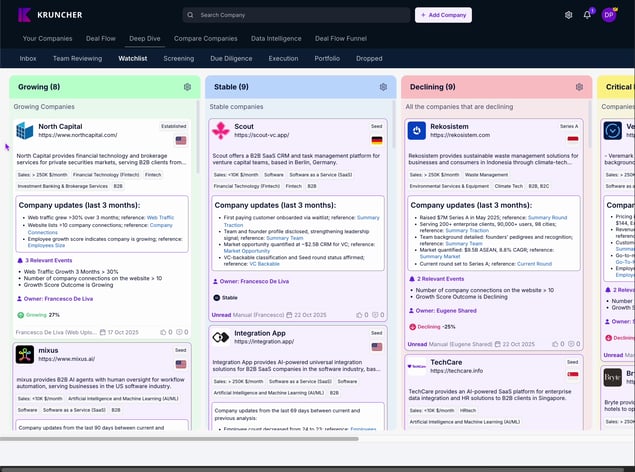
To do this, you need to toggle on automations for your Watchlist or Portfolio.
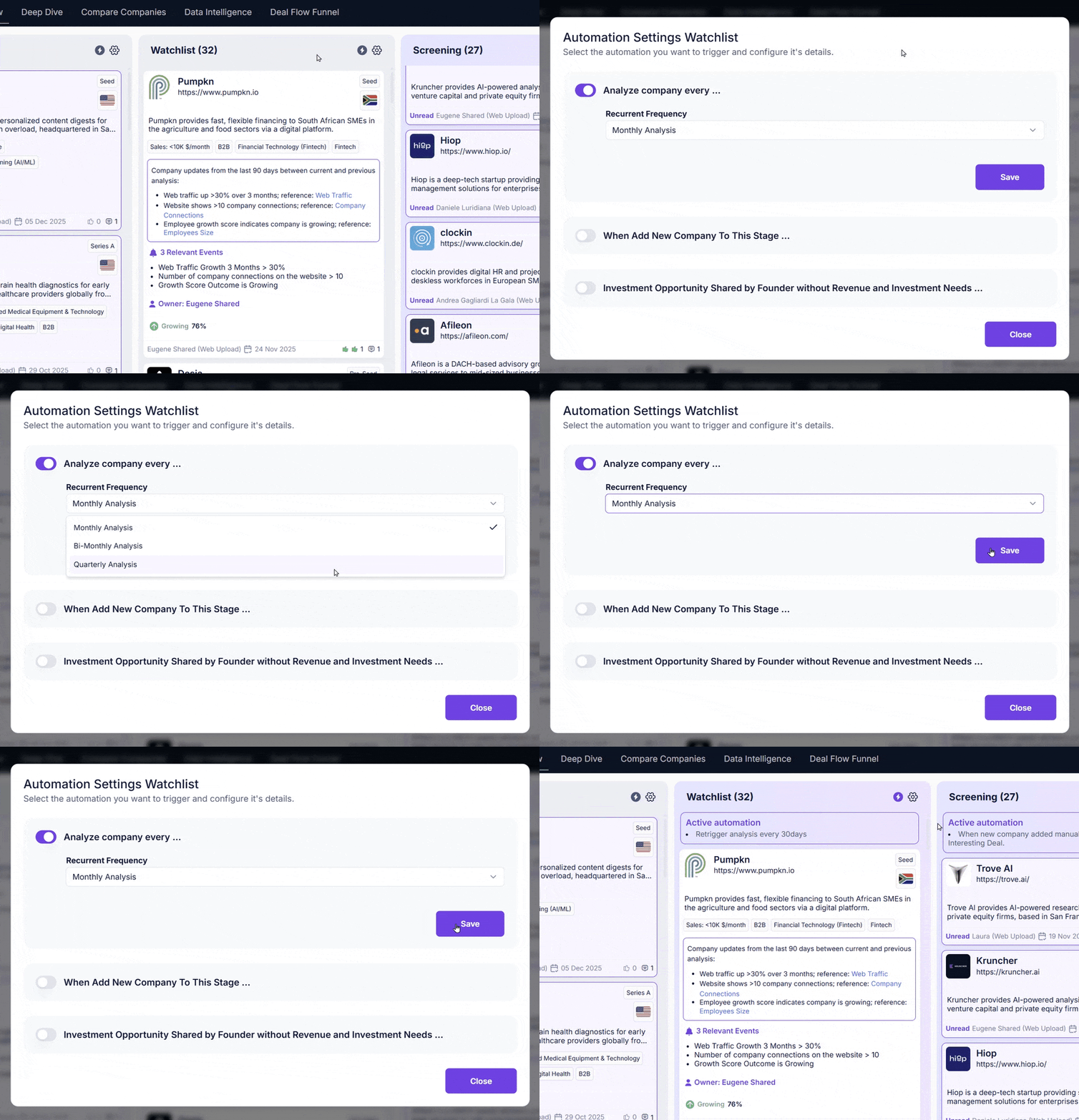
This will automatically re-run ALL company analysis in your Watchlist/Portfolio monthly/quarterly, giving you growth and decline signals and a numerical growth score.
Growth Score is a percentage number (%), both positive and negative. The higher the number, the better and faster growth rate that company is showing. Negative numbers means the company is de-growing, or in other words, declining.
Automating Founder Outreach
As a natural extension to connecting your email inbound into Kruncher, you can also send reply emails from within Kruncher, with content automatically populated referencing unique details about the company.
This process automates and massively simplifies your outreach process, reducing it to a few clicks compared to manually researching the company and the founders' Linkedin, etc.
Inside company reports, click the "Contact Company" button on the left bar just below the company's logo.
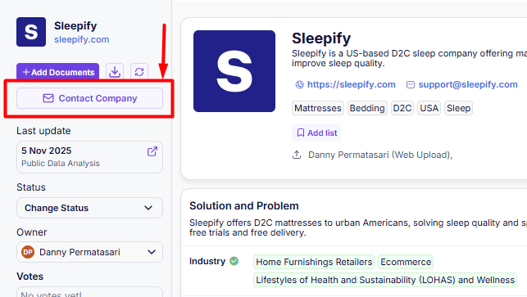
This will open a floating window and it will ask for you to choose an email template to use.
NOTE: Read more on customizing email templates in this guide.
After you selected a template, you can view what will be sent to the company/founder.
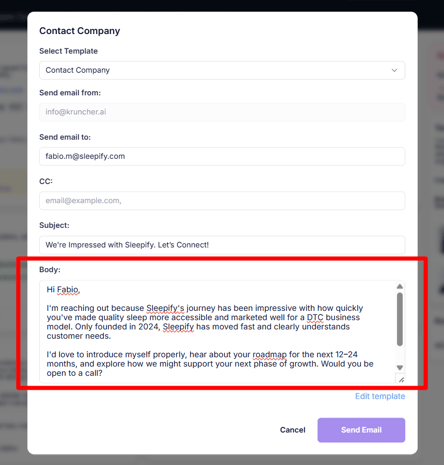
The template follows the overall structure set in the email template customization, but each email content is customized precisely to the company's most recent situation with your fund details as well.
After everything is filled up to your satisfaction, press the "Send Email" button.
Your email will be sent from your client as if you had typed it natively in Gmail/Outlook/etc.
Note that this button will appear as "Open Email" if you have not connected your email to Kruncher.
Read this guide to learn more about automating your outreach.
Chat with Your Data (Kruncher AI Chatbot)
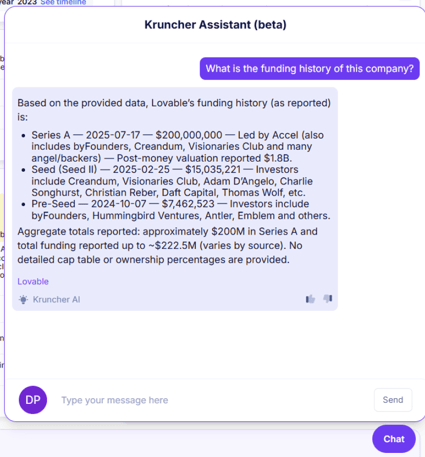
You can also chat with your data with Kruncher AI Assistant that remembers every deal in your workspace.
Walk into every meeting confident and prepared with information presented to you as you ask them. No more frantically reading through notes and slides of a company right before the meeting.
Click on the purple "Chat" button at the bottom right of the platform.
Some example use cases chatting with Kruncher AI Assistant:
- Recall which agritech company you had a meeting with 2 weeks ago
- The latest known MRR/any data point of a specific company
- The key updates of [company] in the last one month
- Overall sentiment for [company] and confidence in investing
The same Kruncher AI Chatbot is also available in Telegram, Slack, and WhatsApp:
- Read more about chatting with Kruncher via Telegram
- Read more about chatting with Kruncher via Slack
- Read more about chatting with Kruncher via WhatsApp
Enabling Your Knowledge Store
Kruncher has a Knowledge Store capability to make it even more accurate when generating company reports and insights by enriching it with industry specific knowledge.
Upload market research documents, internal benchmarks and more so Kruncher has better context and generates even more comprehensive and accurate analyses.
Your files stay securely in your Knowledge Store and are instantly searchable by our AI.
To access this feature, go to Settings (⚙️) -> Knowledge Store.
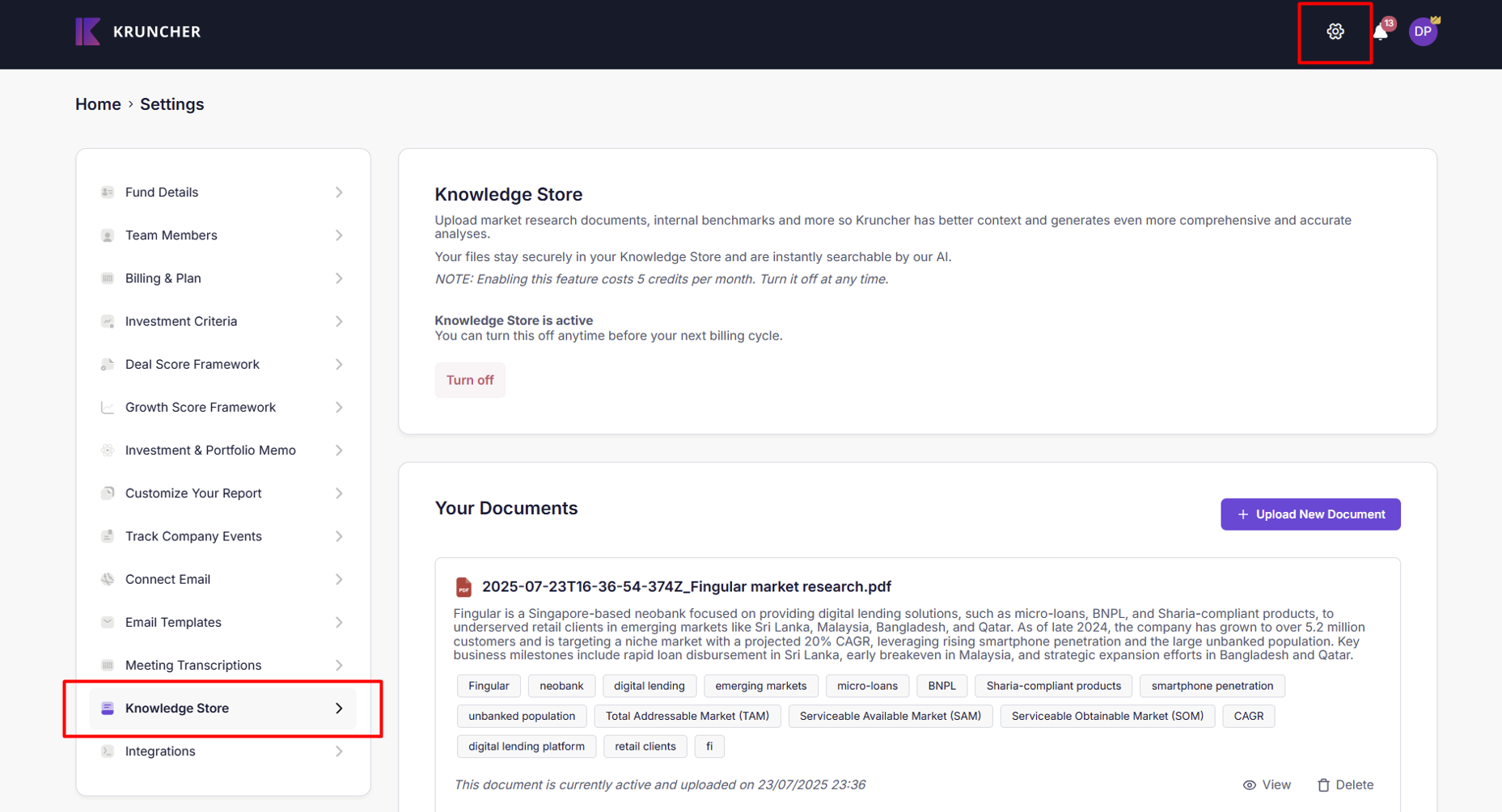
Press the "Turn On" button to active this feature.
IMPORTANT: Enabling this feature costs 5 credits per month. If you do not have sufficient credits, you will not see the button to enable it.
Once enabled, click on the + Upload New Document button to start uploading your documents into your Kruncher's Knowledge Store.
Read this guide to learn more about enabling your knowledge store.
Votes and Comments in Company Reports
Kruncher is designed to be used collaboratively. It acts as a single source of truth for multiple people working across the fund.
You can vote and comment on company reports to share what you think with your team members.
Click here to learn more about inviting team members into your Kruncher workspace.
On the Summary section, scroll down until you see the Votes and Comments block.
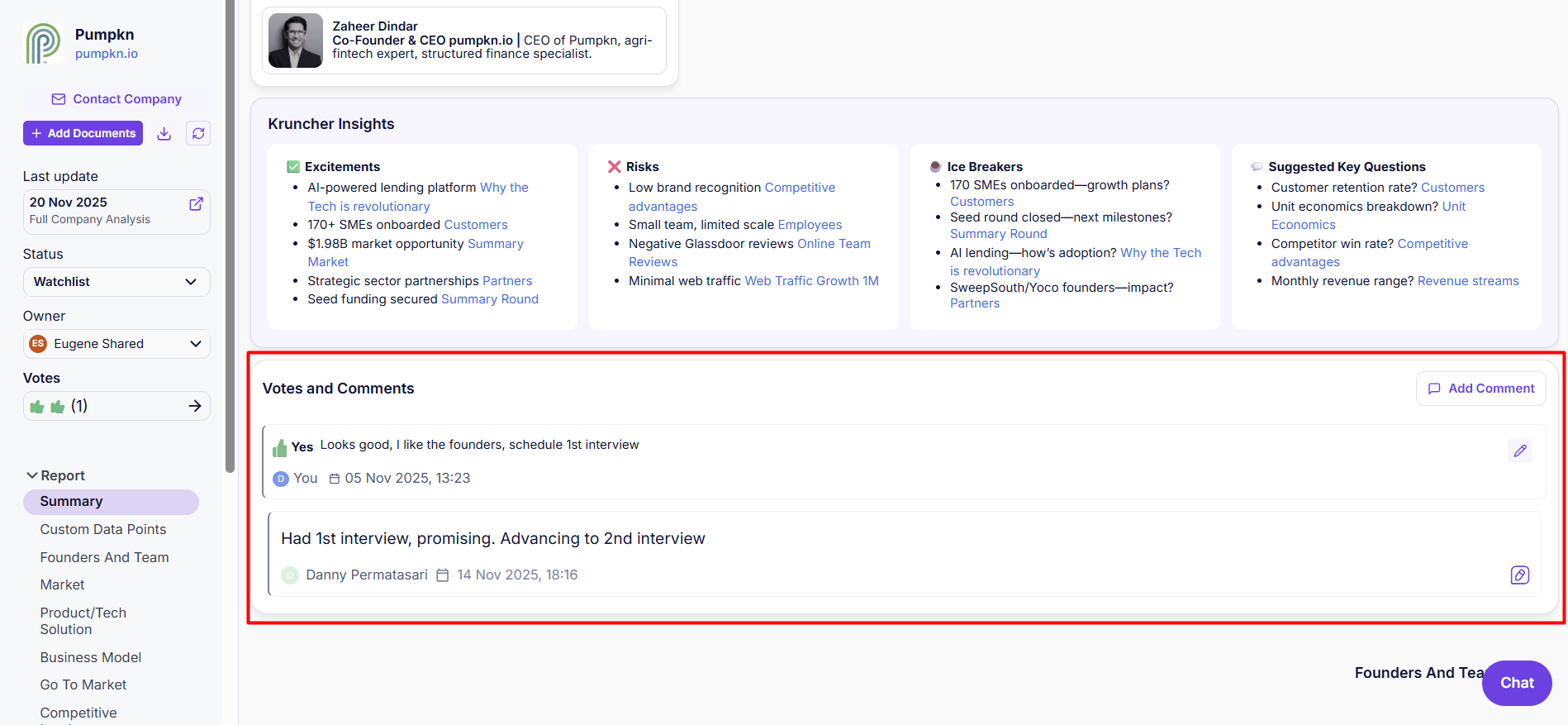
Click No / Maybe / Yes to vote on this company. Add your rationale for why you voted so.
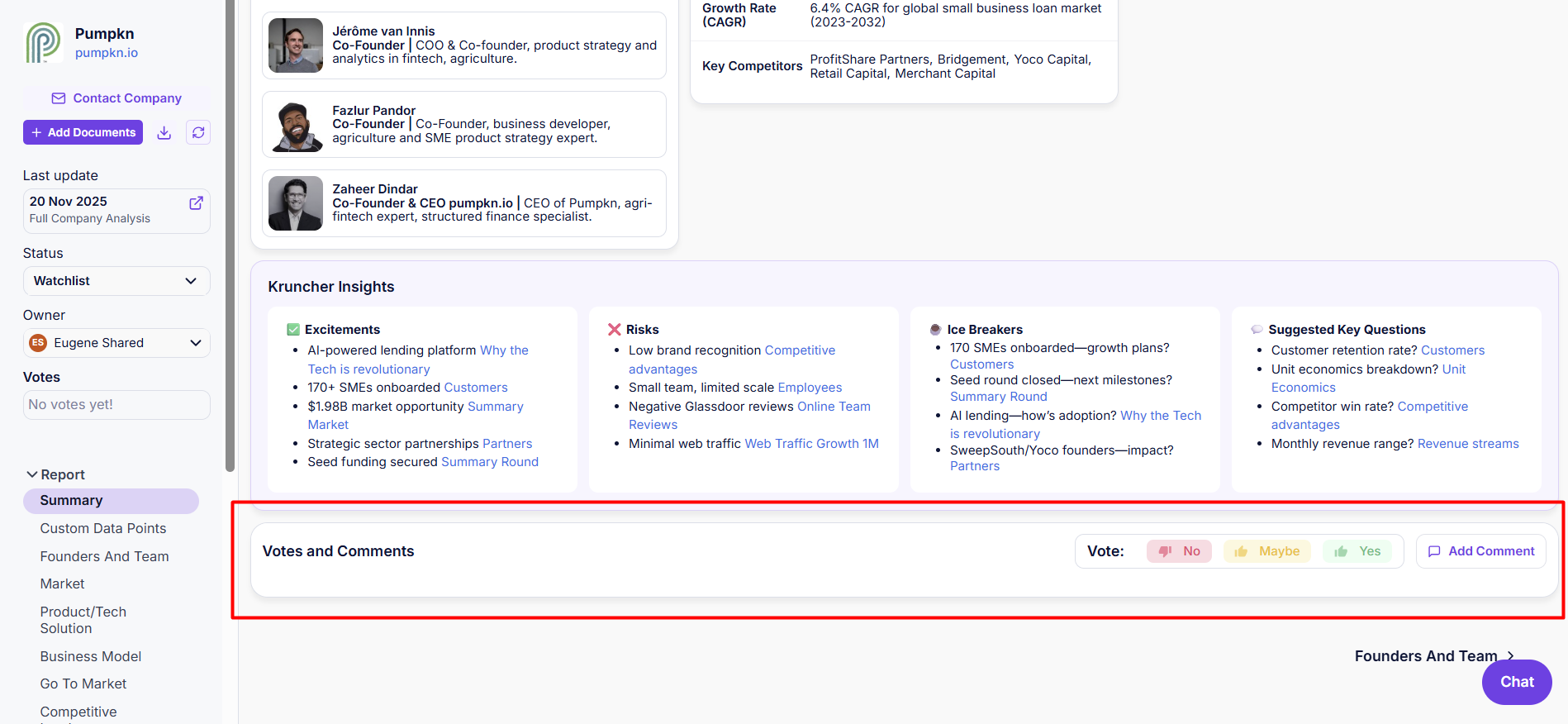
Then, you may click on the "Add Comment" button to add a comment. This will be publicly visible inside the company report.
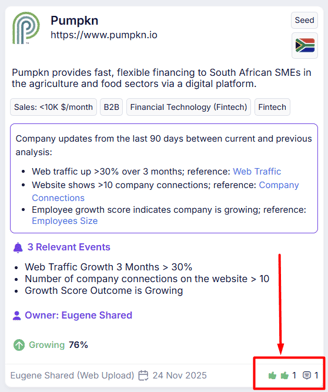
You can see how many votes and comments company reports have from their cards in their bottom right corner.
Tasks & Notes in Kruncher
Kruncher automatically turns your calls, emails, and CRM notes into structured intelligence — so your fund's thinking is always captured, organized, and reflected in every report.
Did you know that Kruncher automatically creates tasks and notes based on your integrations and the information you receive via emails, transcripts, and CRM integrations?
Notes have become critical for generating investment memos, IC decks, and LP reporting, and for helping Kruncher improve its algorithm — all without requiring any manual data entry from the user.
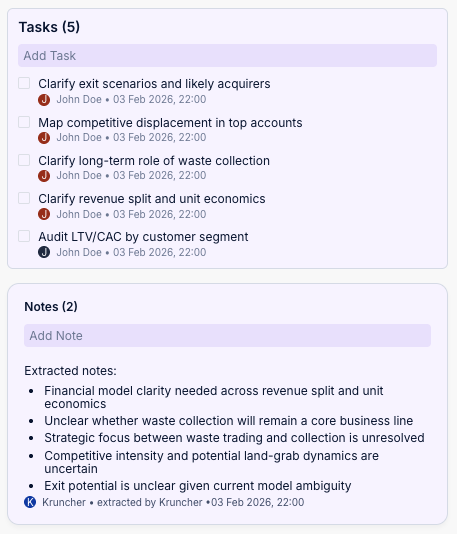
Every time a call recording, email, or CRM note enters Kruncher, it goes through a separation step. Company facts — what the founder told you about their revenue, team, product, and market — go into the company report as clean, unbiased data. Your fund's observations — what your team thinks about those facts, what concerns came up, what still needs to be answered — are captured separately as Notes and Tasks.
This means your reports reflect reality accurately, and your team's analysis is never lost or mixed in where it doesn't belong.
Notes are automatically extracted from your calls, emails, and CRM entries — structured, attached to the right company, and tagged with the exact conversation they came from. You can also add notes manually at any time. When you do, Kruncher reads the note and automatically places a comment in the relevant section of the company report — so if you flag a concern about the team, it appears next to the team analysis, not buried in a separate tab.
Every note is fully traceable — you always know who said it, when, and in which conversation. You can mention a teammate in a note and they'll receive a notification.
After every call, Kruncher automatically extracts the open questions and action items your team raised and creates Tasks — each with an owner, a due date, and a link back to the conversation that triggered it. You can also create tasks manually. Tasks are visible across your entire pipeline, so any team member can see everything assigned to them across all companies in one view, filtered by date or status.
When someone is assigned to a task or mentioned by name, they receive a notification automatically. No separate task tool needed.
Notes and Tasks don't just sit in a separate panel. When Kruncher generates or updates a report, it takes your team's Notes into account — informing the summary, the investment thesis, and the pros and cons with the actual views of the people who spoke with the founder. The result is a report that reflects both what the company said and what your fund thinks about it — cleanly separated, fully sourced, and ready for IC without any additional prep work.
How to Connect Your Private Market Data to Claude and ChatGPT — in One Click
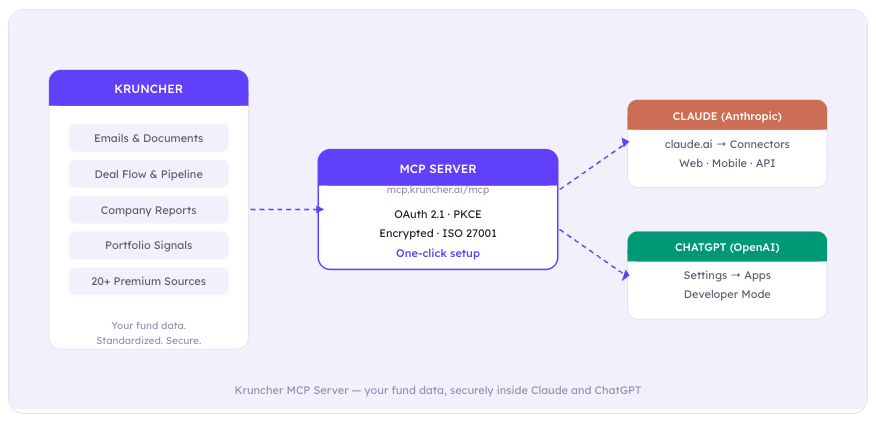
Kruncher now runs as an MCP server. Here's exactly how to set it up in under 5 minutes — no engineers needed.
Full setup documentation is at docs.kruncher.ai/mcp.
- Connect Kruncher to Claude in under 5 minutes — no engineering required
- Connect Kruncher to ChatGPT with 4 simple steps
- Ask any question about your deal flow, portfolio, or watchlist in plain language
- Understand exactly how your data stays secure throughout
There's a question we hear constantly from investors right now: "We use Claude and ChatGPT every day — but they don't know anything about our deals."
That changes today.
Kruncher now runs as an MCP server — meaning you can connect your entire fund knowledge base directly to Claude or ChatGPT and start asking questions about your pipeline, your portfolio, and your watchlist in plain language. No engineers. No API calls. No data exports.
What is an MCP server — and why does it matter for investors?
MCP stands for Model Context Protocol. Think of it as the universal connector that lets AI tools like Claude and ChatGPT access external data sources securely — in real time.
Until now, if you wanted your AI assistant to know about your deal flow, you had to manually paste information into the chat, upload documents one by one, or build a custom integration from scratch — which could take weeks and require a dedicated technical team.
With Kruncher's MCP server, that entire problem disappears. Kruncher becomes the data layer. Claude or ChatGPT becomes the interface. And you just ask questions.
Once connected, the kinds of questions you can ask instantly include:
- "Show me all companies in my pipeline at the screening stage"
- "Which fintech companies in my watchlist are showing growth signals?"
- "Get the full analysis report for Acme Corp"
- "What changed at TechStartup Inc in the last 3 months?"
- "Which portfolio companies have the strongest revenue growth right now?"
- "Add a note: followed up via email with the founder"
Every answer comes from your Kruncher data — your actual deal flow, your documents, your signals. Not a generic web search.
How to connect Kruncher to Claude
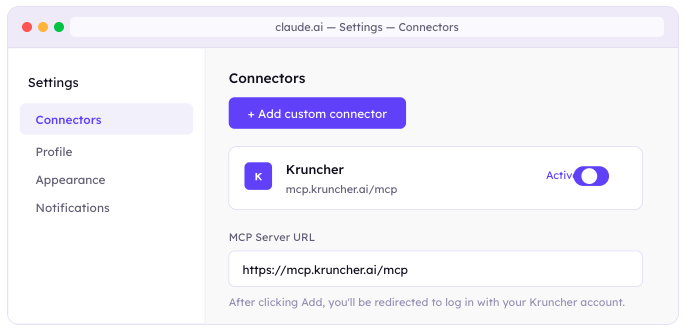
Setting up takes under 5 minutes. Here's exactly what to do:
| 1 |
Open Claude Settings → Connectors
|
| 2 |
Get your MCP Server URL from Kruncher
In Kruncher, go to Settings → MCP Server. Copy the MCP Server URL shown there and paste it into the Claude connector field, then click Add.
|
| 3 |
Authenticate with your Kruncher account
First please click on Disconnect and then the Connect Button.
You'll be redirected to log in — same credentials you use every day. No new password needed. |
| 4 |
Enable Kruncher in any conversation
Click + near the chat composer → Connectors → enable Kruncher. Works on web and mobile automatically.
|
Important — disconnect and reconnect after adding. Once you've added the connector, disconnect it once and reconnect it. This ensures Claude loads the latest tool definitions correctly. You'll only need to do this once.
If the connection fails on first attempt, go to Advanced Settings when adding the connector. You'll find the OAuth Client ID in Kruncher → Settings → MCP Server (leave Client Secret empty).
How to connect Kruncher to ChatGPT
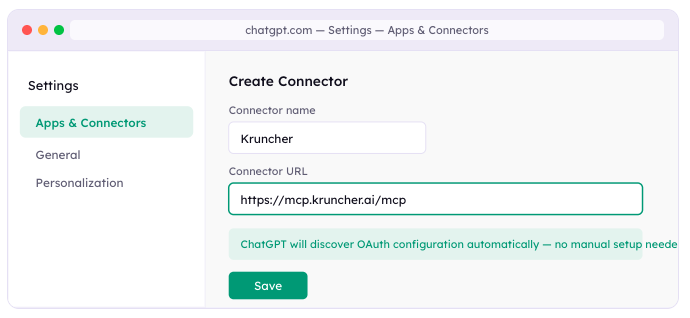
ChatGPT connects via its Apps system. The setup takes about the same time and requires no manual auth configuration — ChatGPT discovers everything automatically.
| 1 |
Enable Developer Mode
Go to ChatGPT → Settings → Apps & Connectors → Advanced Settings → toggle Developer Mode on. (Team/Enterprise: a workspace admin must enable this first under Workspace Settings → Permissions & Roles.)
|
| 2 |
Create the connector
Click Create. Set the name to
Kruncher, then go to Kruncher → Settings → MCP Server to copy the Connector URL. Paste it in. Leave everything else as-is — ChatGPT discovers OAuth configuration automatically. |
| 3 |
Save and authenticate
Click Save. On first use you'll be prompted to log in with your Kruncher account.
|
| 4 |
Start a new chat
Click + → More → select Kruncher. Try: "Show me my pipeline" — Kruncher will immediately surface your deal flow.
|
What data does Kruncher bring to your AI?
Kruncher doesn't give your AI access to a static snapshot. It gives it access to a continuously updated, structured intelligence layer built from everything your fund knows:
- Your emails and founder conversations
- Pitch decks and data room documents
- Meeting transcripts (Zoom, Google Meet, and more)
- Your CRM data (Affinity, Attio, Pipedrive, and more)
- 20+ premium external sources (Crunchbase, LinkedIn, Statista, and more)
- Your own notes, comments, and investment decisions
Every data point is cleaned, normalized, and structured by Kruncher before it reaches your AI. So when you ask a question, the answer is sourced — not hallucinated.
Security: your data stays yours
This is the question we hear most from institutional investors, so let's be direct about it.
- Your data is fully segregated per fund — no cross-contamination between accounts
- Your data is never used to train any AI model — not Kruncher's, not Anthropic's, not OpenAI's
- Authentication uses OAuth 2.1 with PKCE — the same standard used by enterprise banking software
- Kruncher is ISO 27001 certified, SOC 2 Type 2 certified, and GDPR compliant
- When Claude or ChatGPT queries Kruncher, your data never sits inside the AI provider's systems