In every generated company report, Kruncher has one of at the bottom:
- Investment Memo
- Portfolio Performance Report
- Preparation Notes
By default, you probably have only seen the Investment Memo. But there are other memos that Kruncher is able to generate, they are just not the default view.
This guide covers how to view a different memo you can see other than the Investment Memo.
Kruncher assigns which company reports get an Investment Memo/Portfolio Performance/Preparation Notes on a stage/status level.
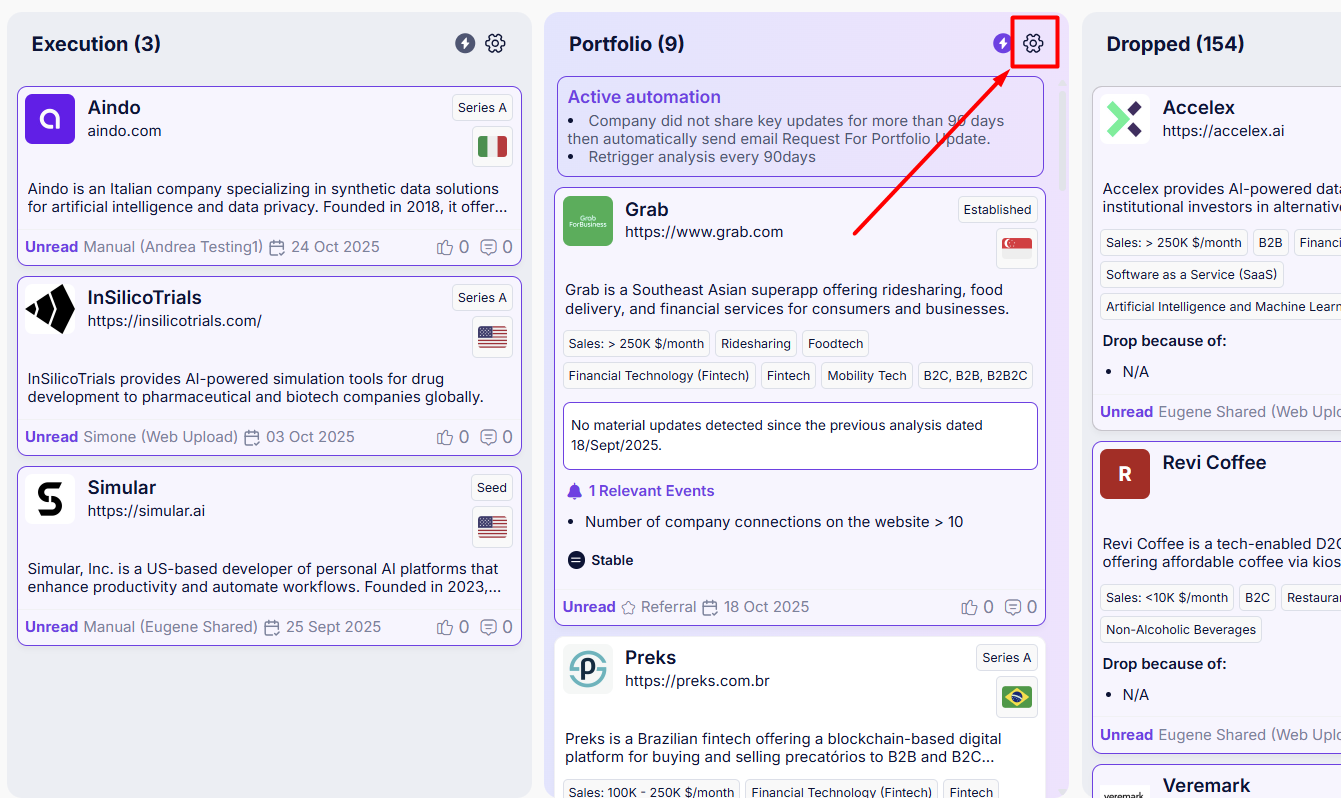
To edit which memo you can view, go to your Deal Flow tab and click on the Gear icon (⚙️) on the top right of each stage/status (columns).
This will open the settings for this status. Select a new memo to view in the "Generate Memo" drop down.
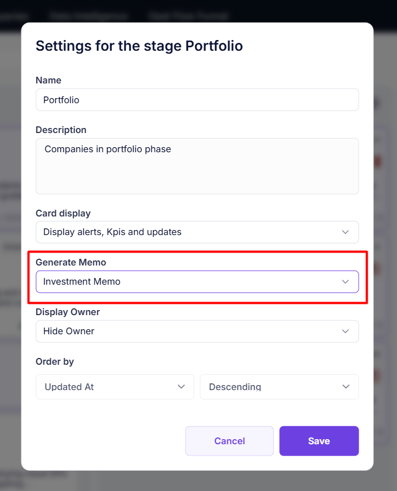
Once done, click Save.
By default, most stages has their memo set to Investment Memo.
The Portfolio stage has its memo set to Portfolio Performance Report.
As these assignments are applied on a stage/status level, it is not possible to set which memo you want in individual reports. Instead, you have to manually move the company's stage for it to be in the stage that has the selected memo you want to view.
Next, learn to customize how Kruncher generates your Investment Memos, Portfolio Performance Reports, and Preparation Notes.