
This guide provides step-by-step instructions for preparing Affinity for integration with Kruncher. Follow the steps below to create a new list, add the required fields, generate an API key, and share the integration details with the Kruncher team.
1. Create a New List in Affinity
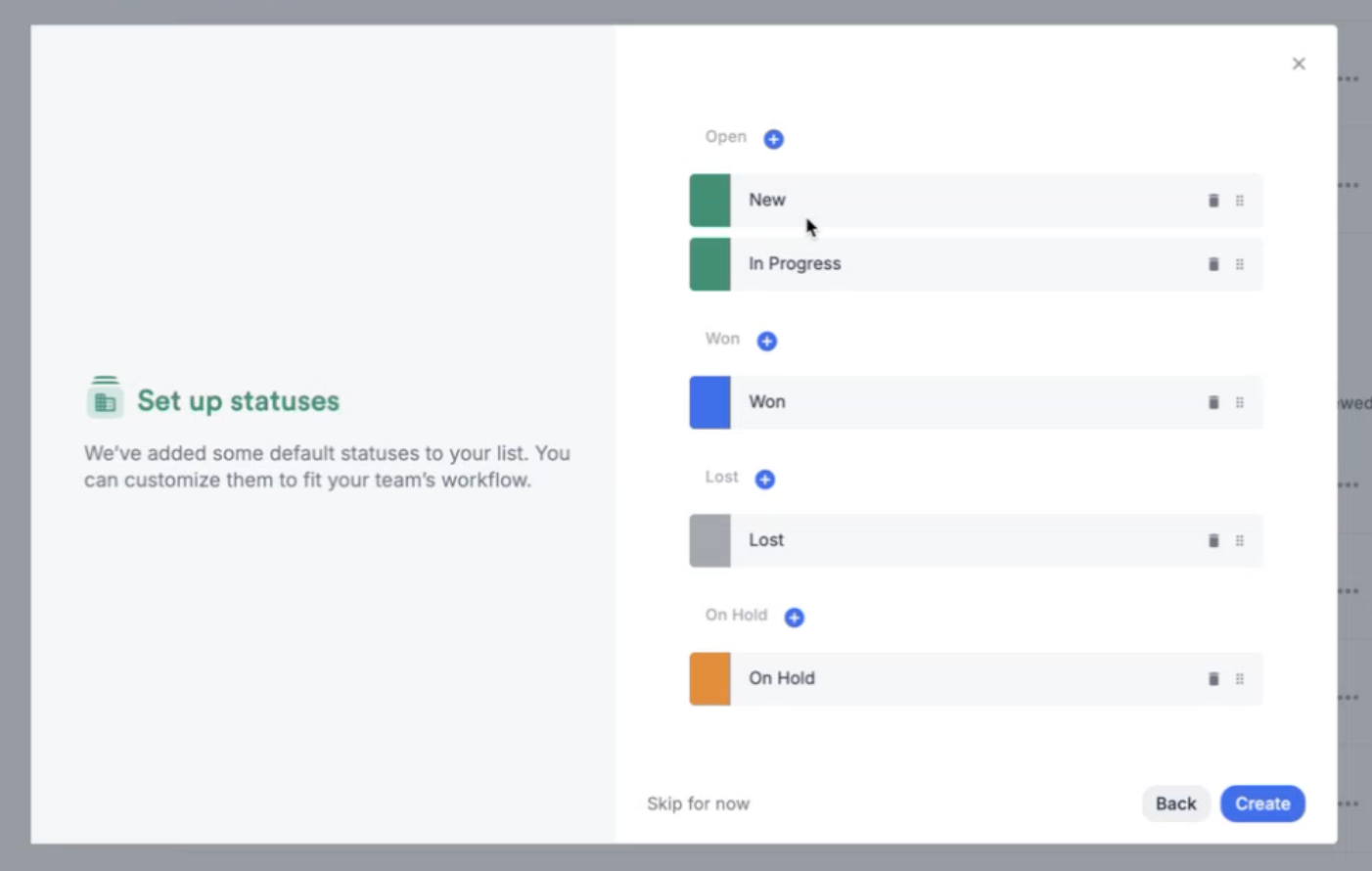
- Navigate to Lists → Create New List.
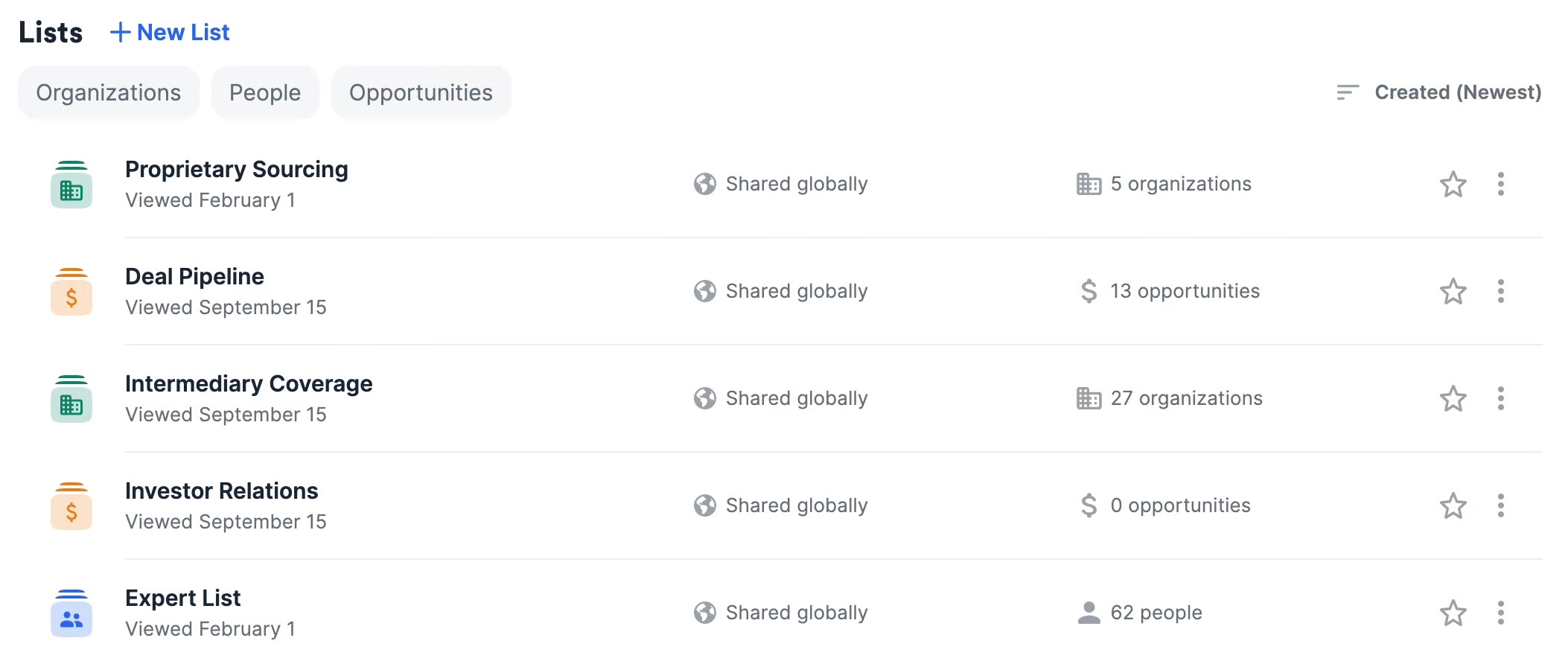
-
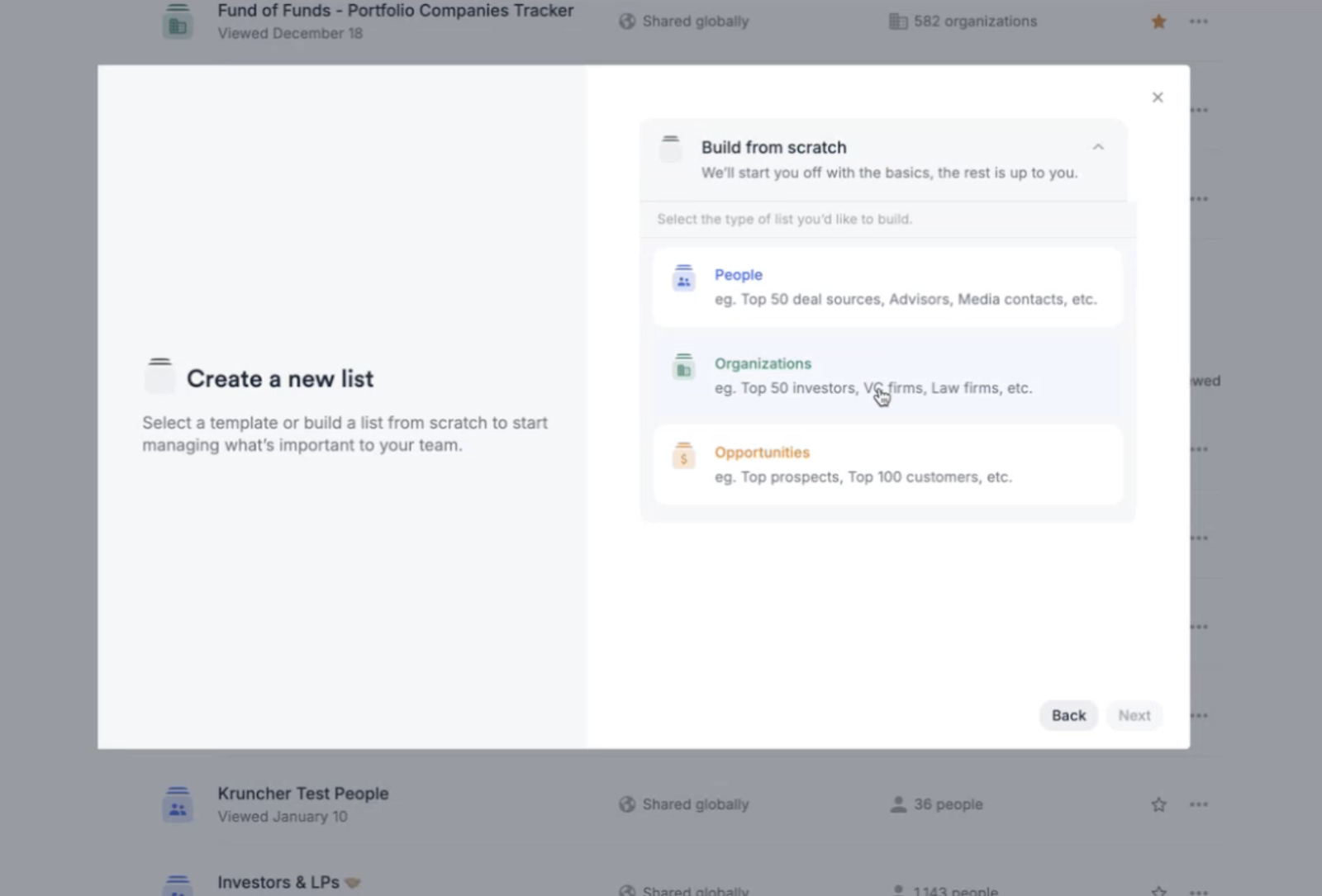
Click Build From Scratch and choose the type:
- Organization (for company data)
- People (for contacts & team members)
-
Name the list (e.g. Deal Flow - Kruncher).
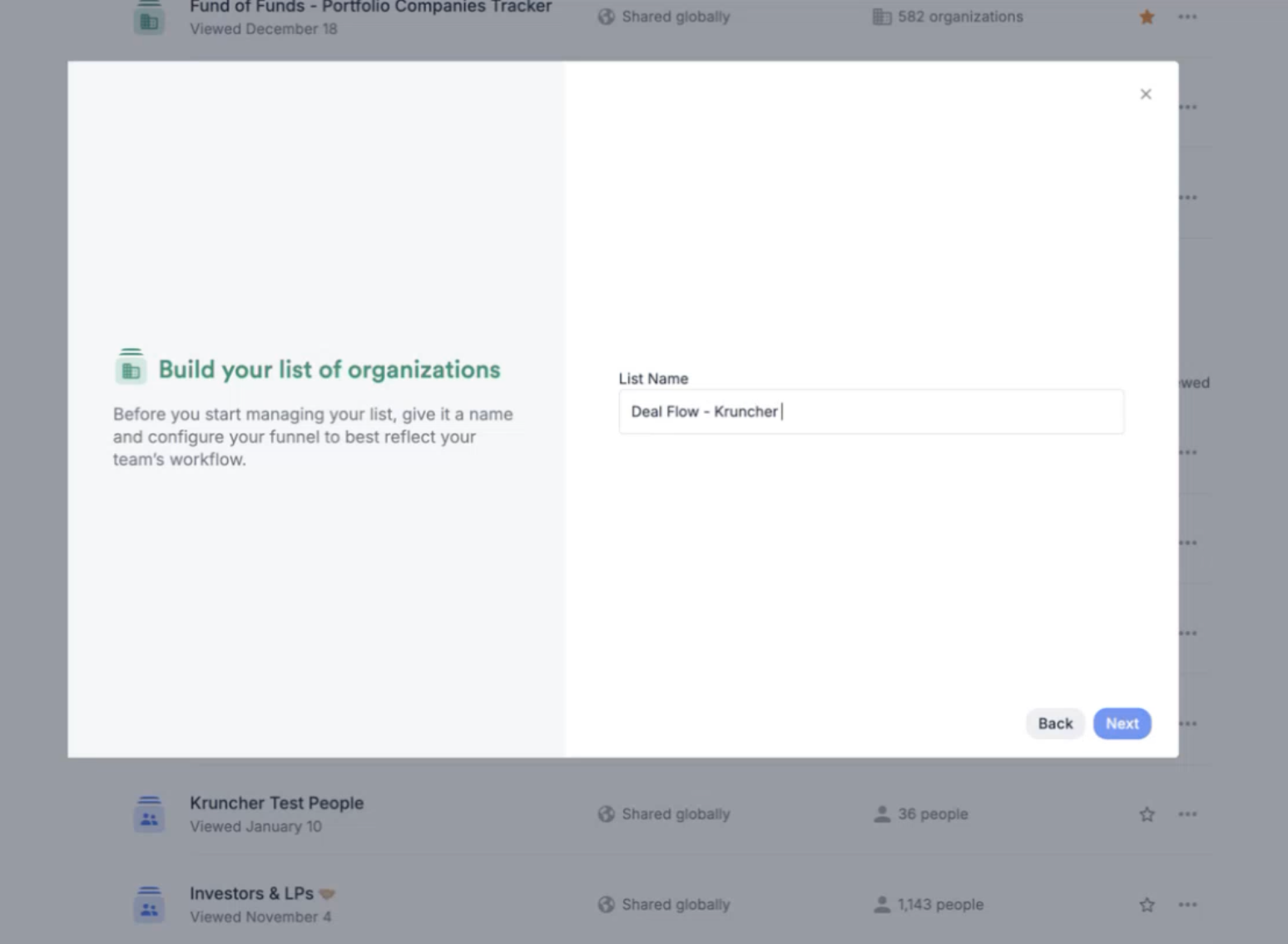
- Click Create.
2. Add Required Fields
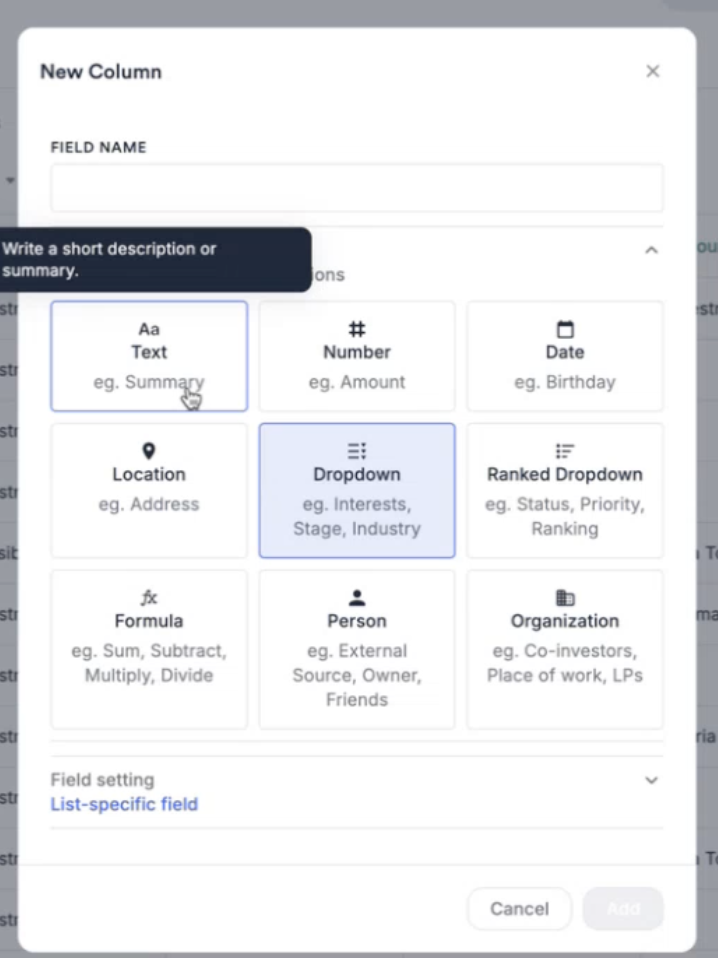
Click + New Column to add the necessary fields. For each field, set the specific Field Name, Field Type, and Field Setting as detailed below.
| Field Name | Data Type | Notes |
|---|---|---|
| Company Name | Text | Must match Kruncher’s format |
| Year Founded | Number | |
| Geography | Dropdown (multiple value) | Better to use “region” |
| Country | Text | |
| State | Text | |
| HQ Address | Location | |
| HQ Country | Text (Country Code) | |
| Employees | Number | |
| Fund Raised (€) | Number | |
| Funding Round | Dropdown | Options: Pre-seed, Seed, Series A, etc. |
| Number of Customers? | Number | |
| Business Model | Dropdown | |
| Industry | Dropdown (multiple value) | |
| Tags | Dropdown (multiple value) | |
| Sub-Verticals? | Investment Criteria | Options: Match / Not Match |
| TAM Company | (Specify appropriate type) | |
| SAM Company | (Specify appropriate type) | |
| TAM Estimated | (Specify appropriate type) | |
| SAM Estimated | (Specify appropriate type) | |
| Pros | Text | |
| Cons | Text | |
| Problem Statement | Text | |
| Revenue Streams | Dropdown (multiple value) | Options: Subscriptions, Licensing, Transaction Fees, etc. |
| Revenue | Number | Monthly revenue range |
| Website | Text | |
| Kruncher URL | Text (auto-generated) | Generated automatically by Kruncher |
Note: Ensure that the field names and types match the Kruncher requirements. Ensure correct field types are set to avoid integration issues. (Please follow the suggest field types in 1.2.1)
3. Generate API Key for Affinity
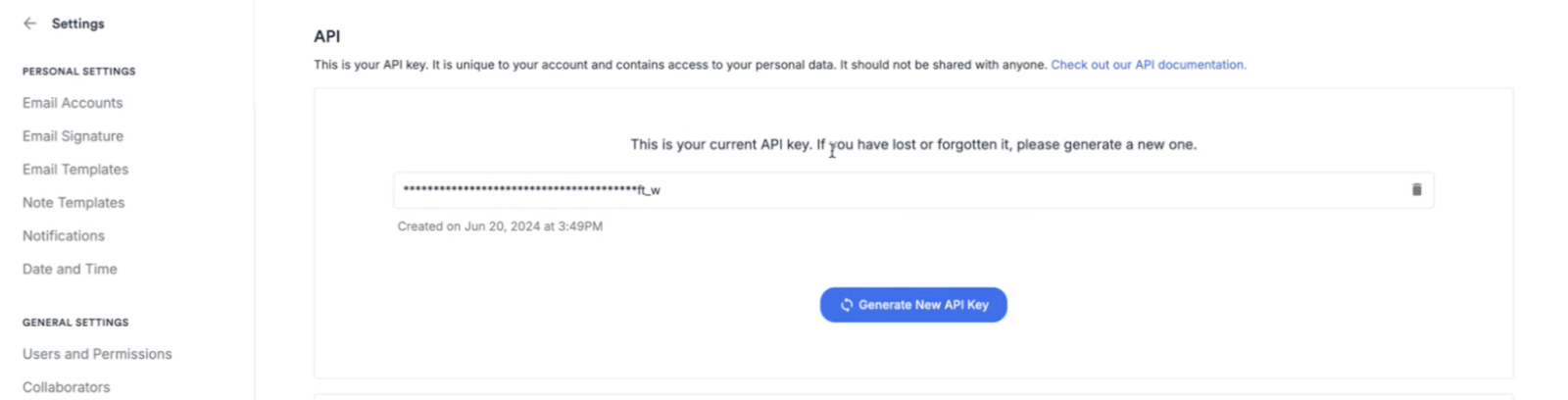
- Navigate to Settings → API Keys.
- Click Generate API Key.
- Copy the API key and save it securely. This key will be used in both Kruncher and Zapier.
4. Provide Information to the Kruncher Team
Share the following details with the Kruncher team to complete the integration:
- API Key (refer to Step 3)
- List Name (refer to Step 1)
- Full list of Field Names & Types created (refer to Step 2)
Follow these steps carefully to ensure a smooth setup process for your Affinity integration with Kruncher.